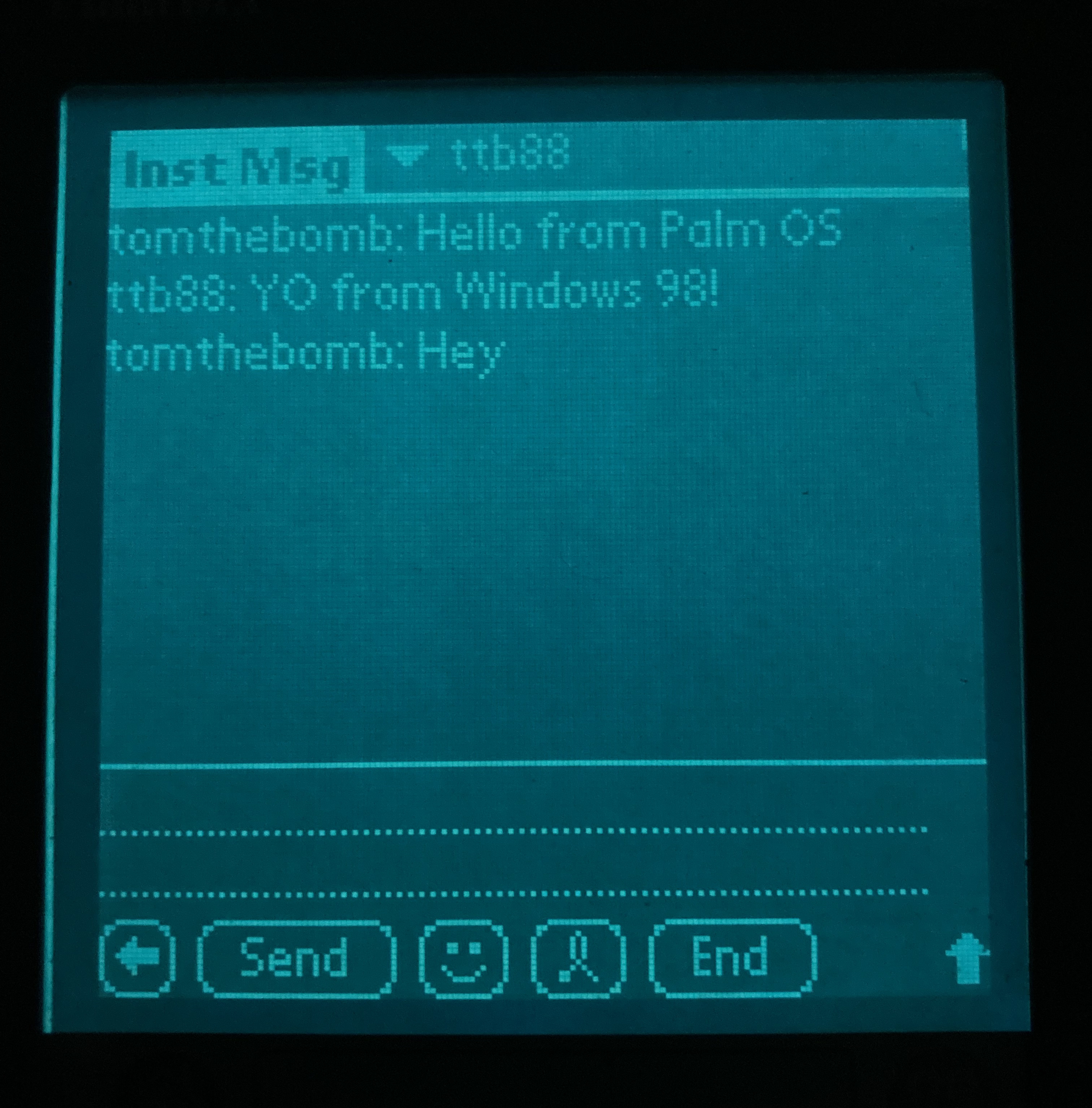
AIM on Palm OS
Table of Contents
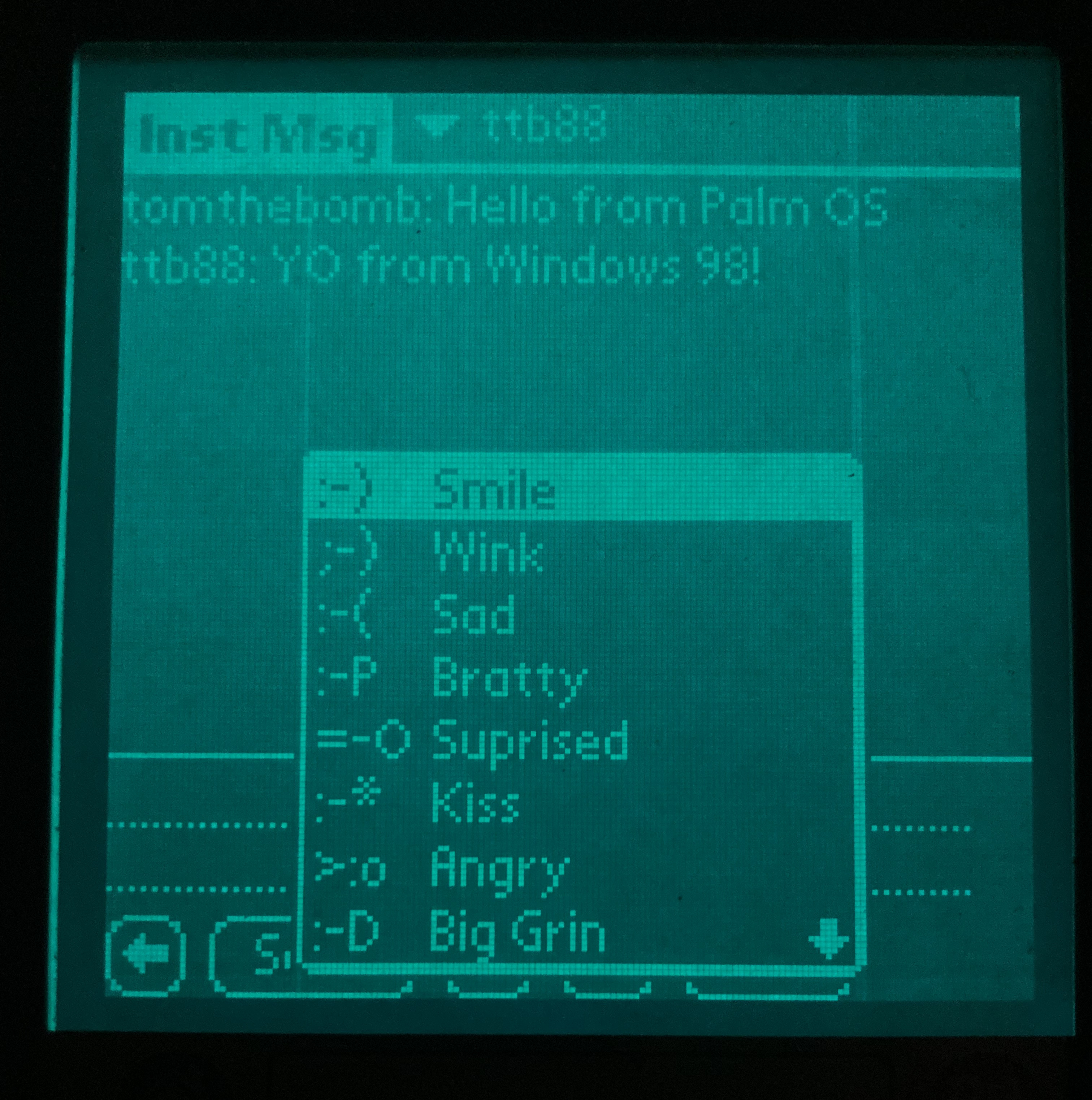
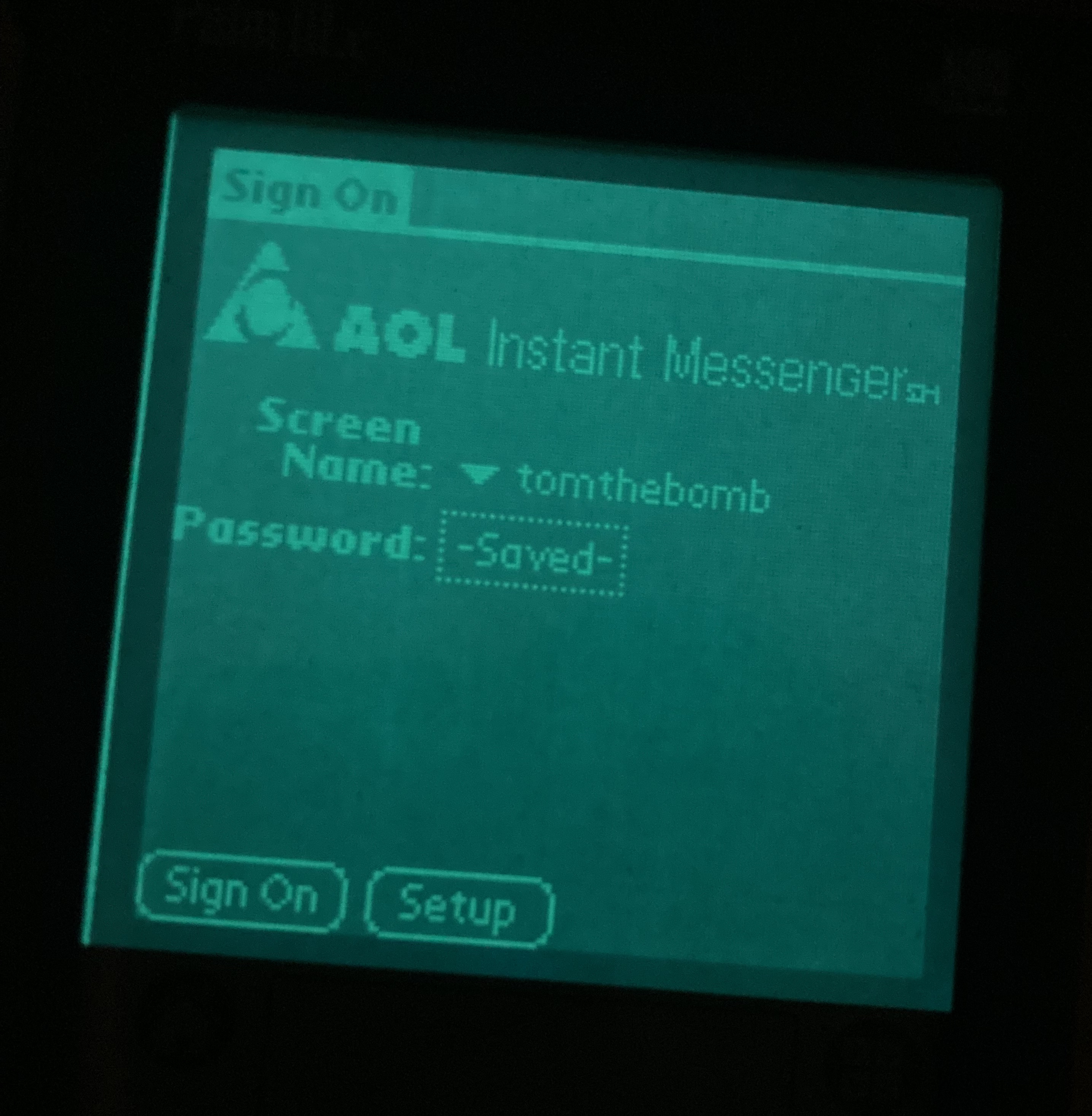
In 2000, AOL released an AIM client for Palm OS (see this capture of the AIM for Palm page from the wayback machine). Although AOL's AIM servers have been shutdown for year now, there are a few efforts to develop and deploy compatible third-party AIM servers. One of the most successful is nina.chat. This page gives a walkthrough of getting the Palm AIM client running by having it connect to the nina.chat servers.
Getting the desktop AIM client connected is not too difficult, since the app allows the user to change the server address and port in the settings dialog. Unfortunately all of that's hard coded on the Palm version. After getting the palm device online, the AIM-relevant details are to intercept DNS requests for the AOL aim server and have them resolve to the nina.chat servers. The other issue is the port: The Palm AIM client tries to connect to a different port than nina.chat uses. Both these things can be taken care of with some networking scripts/commands on the PC end (dnsmasq for the domain issue, iptables for port issue.)
1 Hardware & Software requirements
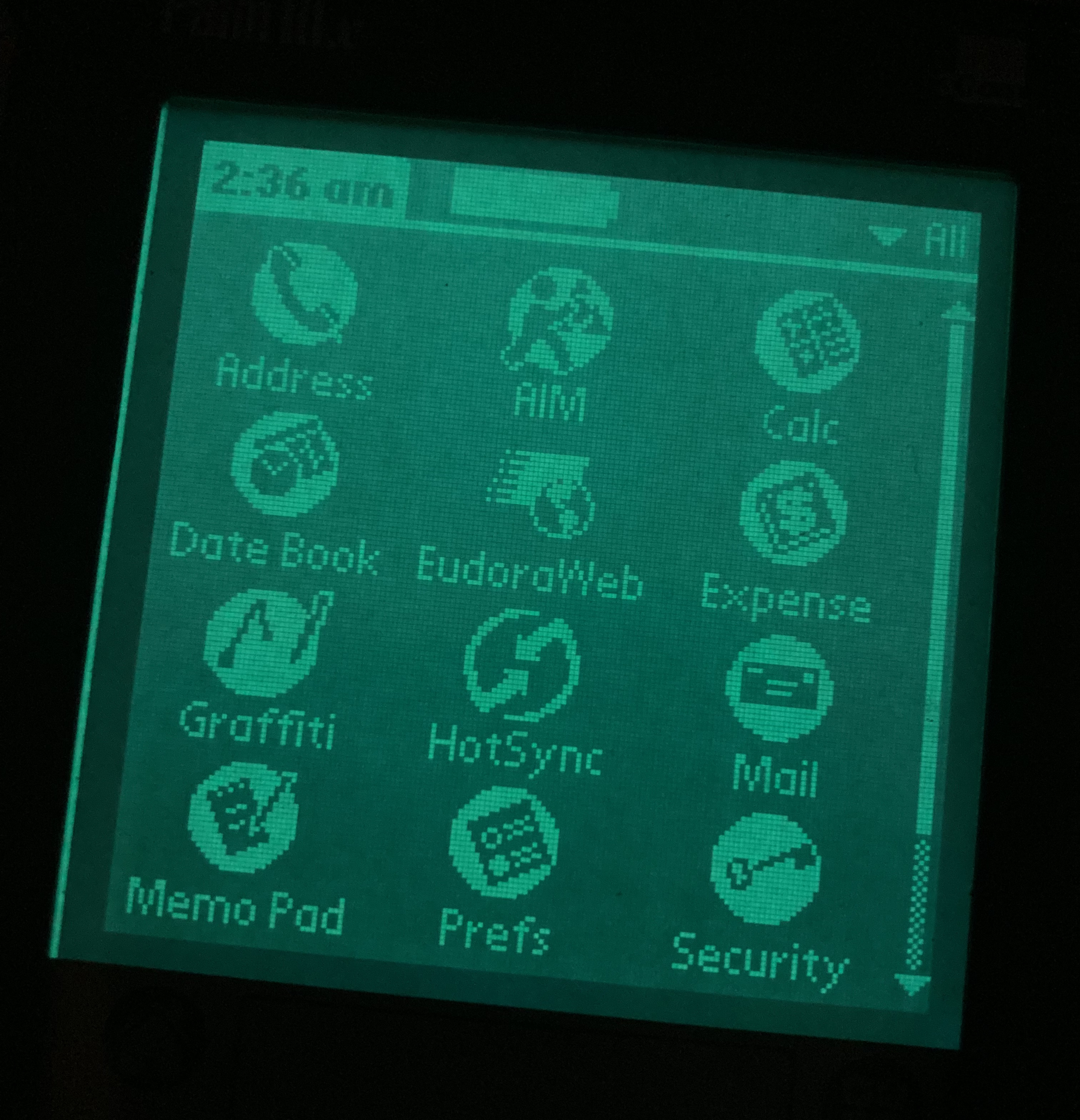
You'll need a Palm device and a sync cable. I tested this with both a Palm IIIx and IIIxe, using a serial sync cable.
You'll need the Palm AIM app as well. I used version 1.1 of the app, which is available on PalmDB. For testing out the connection, you'll probably want a web browser running on the Palm. You can use Eudora web which is also available on PalmDB.
To register for nina.chat, as of today () you'll need to visit Escargot.chat and follow the instructions for an Escargot account.
These instructions assume you're running Linux on the machine connected to the Palm. On this machine you'll need pppd to create the connection, iptables for the NAT translation to let the palm access the internet, as well as for port remapping, and dnsmasq for DNS resolution.
The commands in the next sections use the following IP address / device names that were specific to my system, and you'll probably need to replace one or more of these with your own information:
192.168.1.1: This should be the IP address of the DNS server used by your computer. Find this with( nmcli dev list || nmcli dev show ) 2>/dev/null | grep "IP4.DNS"enp4s0: The interface connected to the intenet on your computer. This was an Ethernet port on my machine. You can identify this on your machine withifconfig.192.168.1.164: The IP address of your computer. Also can be found withifconfig./dev/ttyS0: The device file for the serial port that the Palm is connected to.134.209.175.246: The IP of thelogin.oscar.nina.chatserver as of today . You shouldn't need to change this unless the DNS record for that domain name is updated.
2 Networking configuration on Linux
2.1 DNS configuration
Insert the following at the bottom of /etc/dnsmasq.conf:
# Listen only on the interface used for PPP (adjust if needed)
interface=ppp0,lo
bind-interfaces

# Forward all other DNS queries to your router
server=192.168.1.1

address=/login.oscar.aol.com/134.209.175.246
That's all for now - we won't start dnsmasq until the connection with the Palm is established.
2.2 IP forwarding configuration
The below iptables commands achieve two things. Firstly, it sets up your computer as a bridge between the Palm device and the internet. Second, it remaps packets bound for port 9993 of nina.chat IP to port 5190.
sudo /usr/sbin/iptables -t nat -A POSTROUTING -o enp4s0 -j MASQUERADE
sudo /usr/sbin/iptables -A FORWARD -i ppp0 -j ACCEPT

sudo /usr/sbin/iptables -t nat -A PREROUTING \
  -i ppp0 \
  -p tcp \
  -d 134.209.175.246 \
  --dport 9993 \
  -j DNAT --to-destination 134.209.175.246:5190

sudo /usr/sbin/iptables -A FORWARD -p tcp -d 134.209.175.246 --dport 5190 -j ACCEPT
sudo /usr/sbin/iptables -A FORWARD -p tcp -s 134.209.175.246 --sport 5190 -j ACCEPT
2.3 Listen for connections on the serial port
The PPP daemon ppd will be used to estblish a network connection between the computer and the Palm device. Launch pppd as follows:
sudo /usr/sbin/pppd /dev/ttyS0 57600 192.168.1.164:192.168.1.201 local ms-dns 192.168.1.164 netmask 255.255.255.0 passive noauth proxyarp debug persist nodetach asyncmap 0 ktune
Note that after about 30 seconds, the pppd command will issue a timeout notice. This is not a problem, as the process will wake back up when we initiate the connection on the palm end. See also this explanation of the pppd command.
3 Networking on the Palm
On the Palm device, Open Preferences, select Connection and make New entry.
- Name: "Custom"
- Connection: Serial to PC
Details should be as follows:
- Speed 57,600 bps.
- Flow Ctl: Automatic
Next, in Preferences, select Network, and either edit a existing Service or make a new one by opening the menu bar and choosing New from the Service menu. Call it test
- Username: (leave empty)
- Password: (leave default (prompt))
- Conection: Custom
Under Details:
- Connection type: PPP
- Idle timeout: Power Off
- Query DNS Yes
- Ip Addrss: Automatic
Under Script…, click on the drop down box on the first list entry, and select 'End'. The only command in the login script should be 'End'.
Press Ok to confirm the Script and the Network details. Back at the Network screen, press Connect to connect the Palm device. You should see a few dozen lines of output from pppd, and the Connect button shold now say Disconnect.
For screenshots of what this looks like, see "Configuring Palm" from these instructions.
4 Connecting to AIM
Your palm should now be connected to the internet. Start the DNS forwarding on your computer with
sudo systemctl restart dnsmasq
You can test out your connection by opening Eudora and visiting the Palm-friendly version of PalmDB at http://lite.palmdb.net.
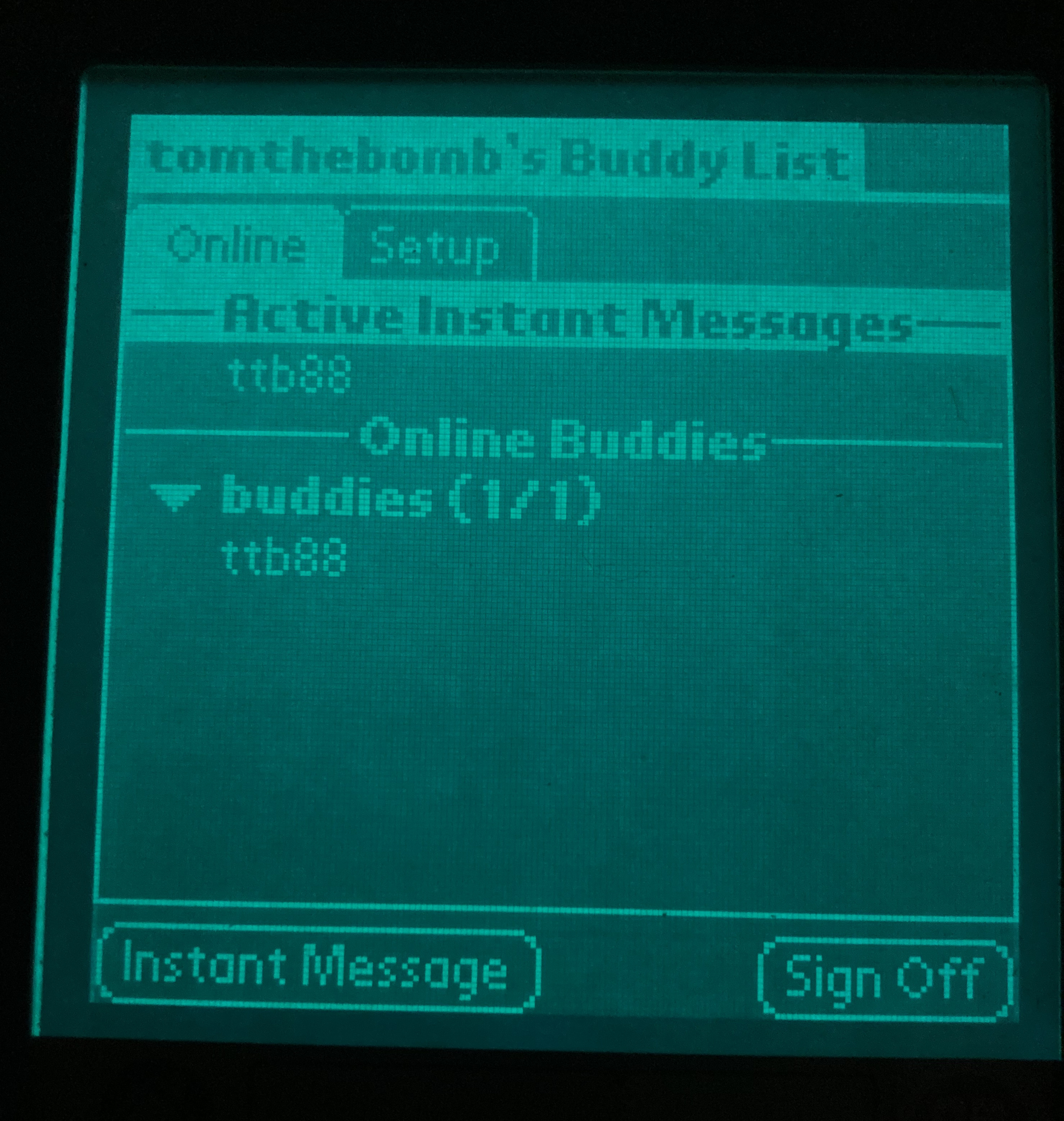
Now you should be able to run AIM. There's nothing special to configure here, simply enter your Screen Name and press Sign On.
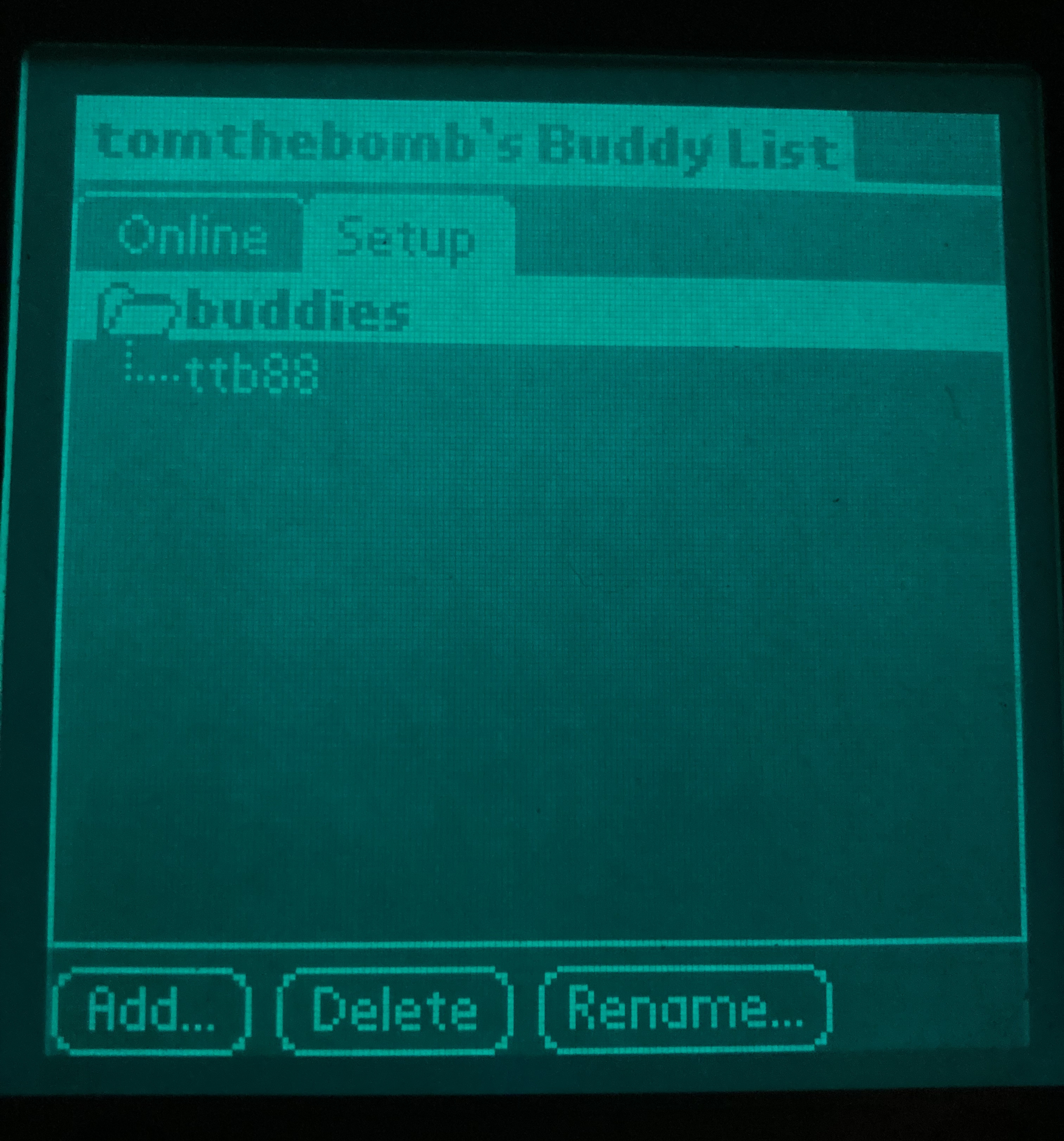
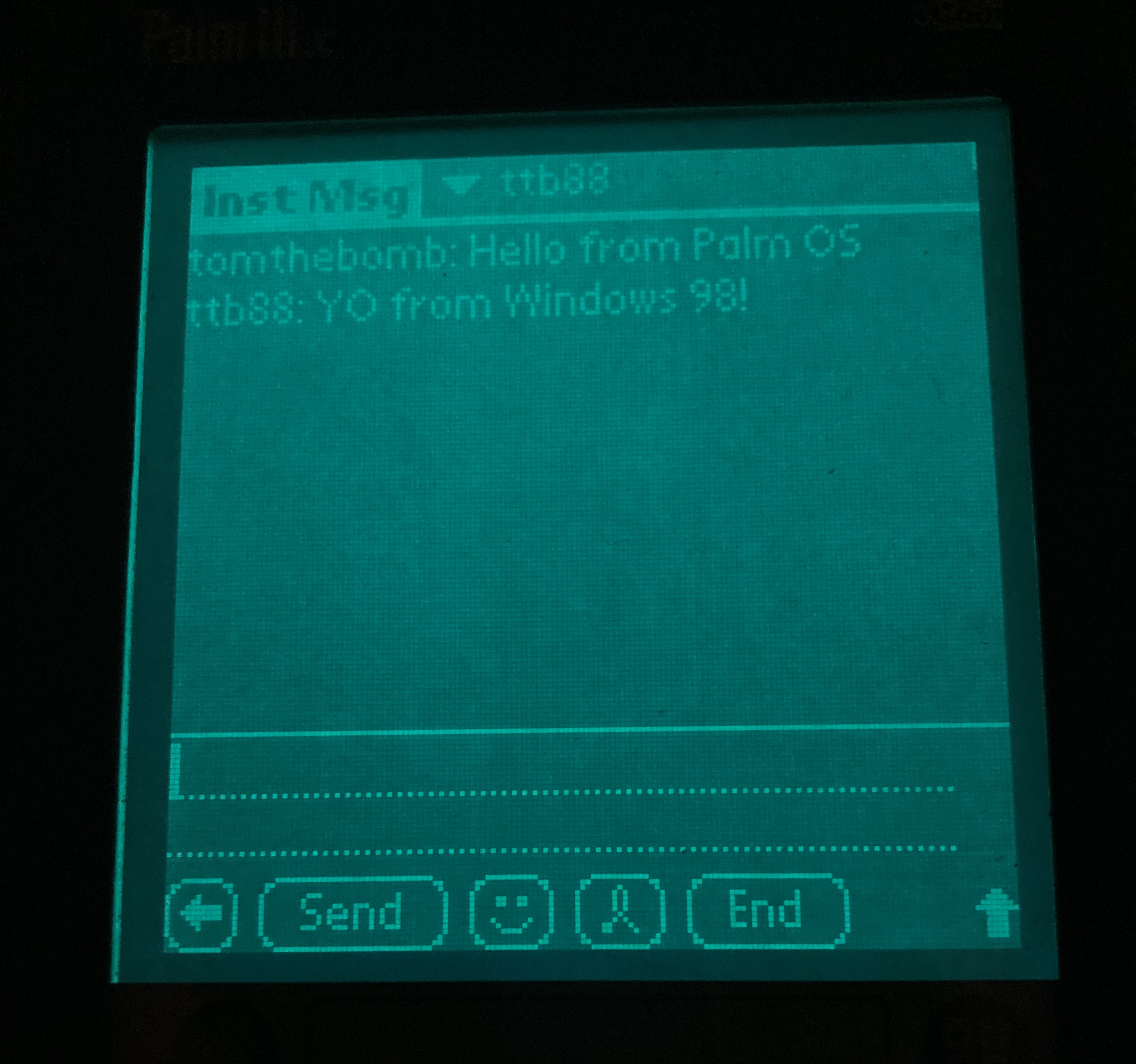
5 More screenshots